Ingesting data from Kafka into Mach5
This document explains how to ingest Kafka records into a Mach5 Search index by configuring a Kafka connection and ingest pipeline in the Mach5 UI. Additional formats are documented in release-specific sections below.
Prerequisites
-
This document assumes that Mach5 is deployed and running successfully. Let’s assume the Mach5 UI is running at http://localhost:8888/.
-
Store, store route and warehouse are created successfully. Refer to Quickstart document for help
-
Consider there is a Kafka topic named kafkatopic already set up having following 10 records:
@kafka-client$ kafka-console-consumer.sh --bootstrap-server kafka.kafka.svc.cluster.local:9092 --topic kafkatopic --from-beginning
{ "id": "1", "ip_address": "192.168.1.1" }
{ "id": "2", "ip_address": ["192.168.1.2", "10.0.0.5"] }
{ "id": "3", "ip_address": "10.0.0.1" }
{ "id": "4", "ip_address": ["10.0.0.2", "8.8.8.8"] }
{ "id": "5", "ip_address": "172.16.0.1" }
{ "id": "6", "ip_address": ["172.16.0.2", "192.168.1.1"] }
{ "id": "7", "ip_address": "8.8.8.8" }
{ "id": "8", "ip_address": ["8.8.4.4", "10.0.0.5"] }
{ "id": "9", "ip_address": "192.168.2.1" }
{ "id": "10", "ip_address": ["192.168.2.2", "8.8.4.4"] }
Processed a total of 10 messages
- Mach5 Index is already created with the name kafkaindex and with relevant mappings for the kafka topic. If no mappings are provided, Mach5 will dynamically infer the mapping when ingesting data. Please note that some data may not get ingested if mappings are not provided.
Connections
A connection stores the properties needed to access a source such as Kafka. The same Kafka connection can be used by multiple ingest pipelines.
Click on Connections on the left panel of Mach5 UI
Add a new connection
Click Create Connection, select Kafka, and fill in the connection details.
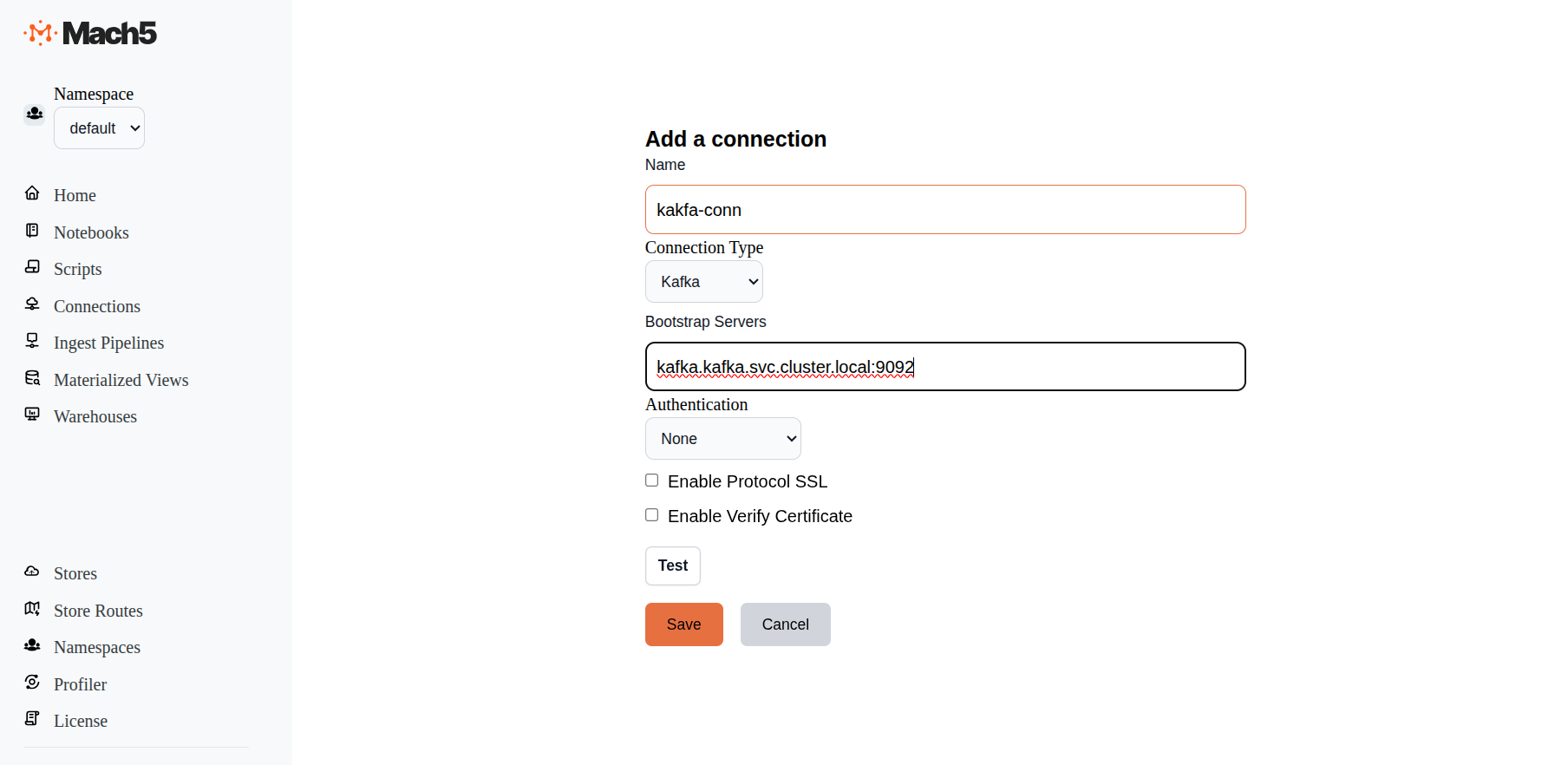
- Name: Provide a name for the connection, for example kafka-conn.
- Bootstrap Servers: Specify the Kafka bootstrap server, for example kafka.kafka.svc.cluster.local:9092.
- Authentication: Select None, SASL, or AWS_MSK_IAM based on your Kafka deployment.
- Enable Protocol SSL: Select this only when the Kafka connection requires SSL.
- Enable Verify Certificate: Select this only when Mach5 should verify the Kafka broker certificate.
- Test: Click Test to verify connectivity to Kafka.
- Click on Save
Ingest Pipelines
Mach5 Search ingest pipelines process and ingest documents from sources such as Kafka, S3, and Iceberg. A Kafka ingest pipeline uses a Kafka connection to read records from a topic and write decoded documents into a Mach5 index.
Click on Ingest Pipelines on the left panel of Mach5 UI
Add an ingest pipeline
Click Create Pipeline on the Ingest Pipelines page.
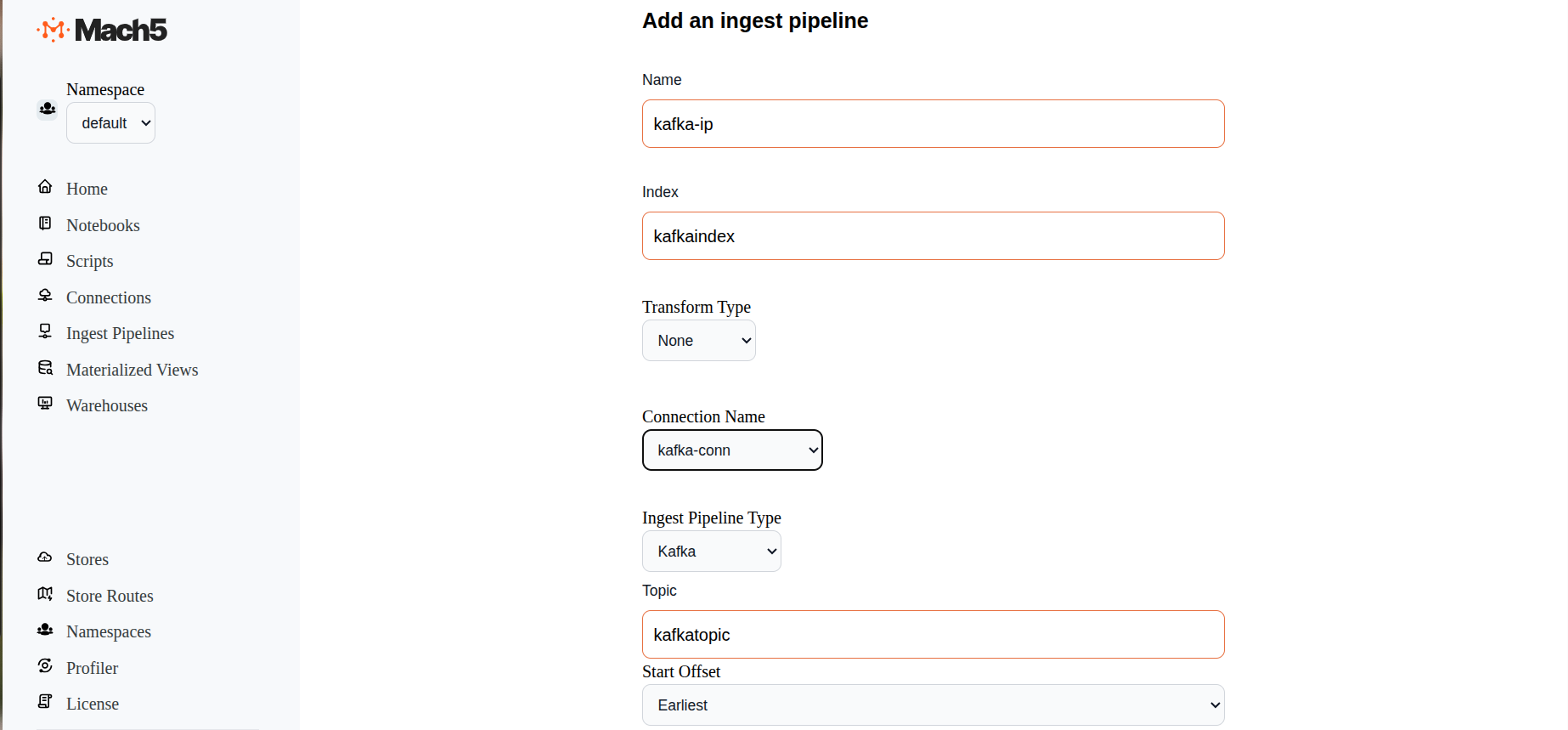
- Name: Provide a name for the ingest pipeline, for example kafka-ip.
- Index: Specify the target Mach5 index, for example kafkaindex. The index must exist before enabling the ingest pipeline.
- Enabled: Select this checkbox if ingestion should start after the pipeline is saved.
- Transform Type: Select None, JavaScript, or VRL. Use a transform when records need to be changed before indexing.
- Connection Name: Select the Kafka connection name that was created earlier
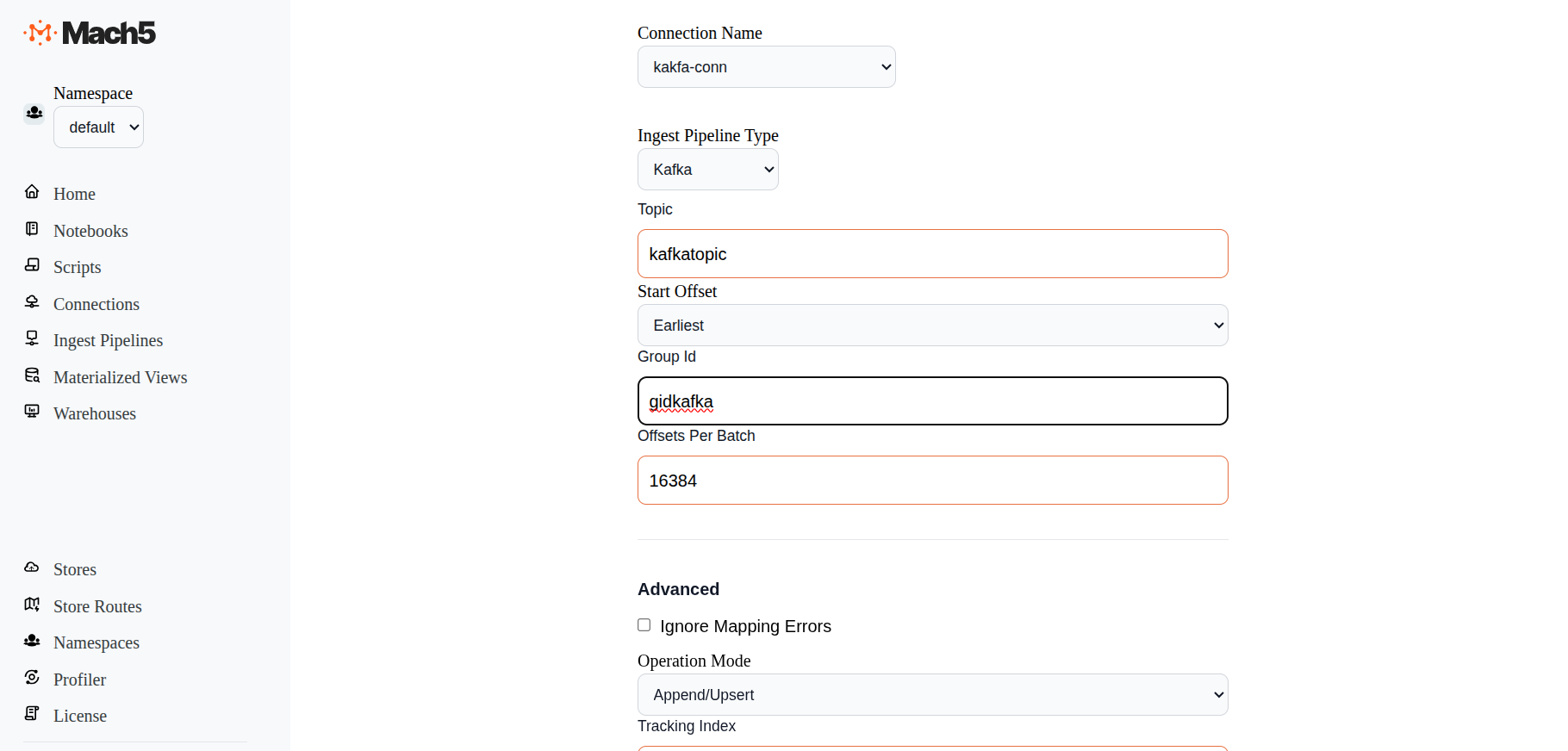
- Ingest Pipeline Type: Select Kafka.
- Topic: Specify the Kafka topic to ingest from, for example kafkatopic.
- Data Format: Select JSON for JSON record values.
- Start Offset: Select Earliest to read from the beginning of the topic, or Latest to read only new records.
- Group Id: Specify the Kafka consumer group ID, for example gidkafka.
- Compression: Select None, gzip, or zstd based on the Kafka record value compression.
- Offsets Per Batch: Default is 16384.
- Chunk Size: Default is 16384.
- Advanced: Per-Partition Offsets: Use this only when specific partitions need explicit starting offsets.
- Advanced: Leave advanced pipeline settings as default unless you need to change settings such as Operation Mode or Ignore Mapping Errors.
- Click Save.
- Once the ingest pipeline is created, records will start getting reflected in the Mach5 index corresponding to the Kafka topic.
Verify an ingest pipeline
After saving, verify that the pipeline appears on the Ingest Pipelines page.
Once the kafka-ip ingestion pipeline is successfully created, records from Kafka in kafkatopic are ingested into Mach5 index kafkaindex. As and when new data comes to the Kafka topic, it will get added into the Mach5 index
Verify data ingestion
Use a Mach5 notebook with an OpenSearch DSL cell to verify that records from Kafka are ingested into Mach5.
- Open Notebooks from the left panel.
- Click Create Notebook and provide a notebook name, for example kafka-verify.
- Open the notebook and select the warehouse to use for querying.
- Click Add Cell and select Add OpenSearch DSL Cell.
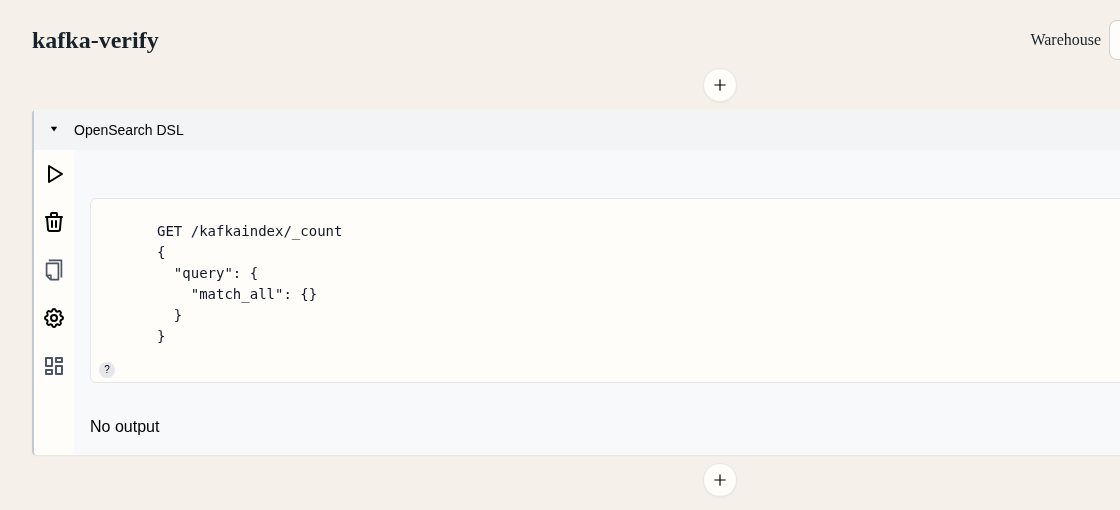
Run a count query in the OpenSearch DSL cell to verify the number of ingested records:
GET /kafkaindex/_count
{
  "query": {
    "match_all": {}
  }
}
For the sample data in Prerequisites, the expected count is 10.
To inspect the ingested records, add another OpenSearch DSL cell or replace the count query with this search query:
GET /kafkaindex/_search
{
  "size": 10,
  "query": {
    "match_all": {}
  }
}
For the sample data in Prerequisites, the search response should show the 10 ingested records from kafkatopic.
Disable ingest pipeline
When not in use, an ingest pipeline can be disabled so updates to source data are not reflected in Mach5.
- To Disable an existing pipeline, click on the Edit icon next to the the ingest pipeline, eg. kafka-ip
- In the Edit ingest pipeline page, at end of all options, before Save button, deselect the Enabled checkbox
- Save the ingest pipeline to take effect
- The kafka-ip ingest pipeline is now disabled. It will not read data from source to ingest data into Mach5. It can be enabled any time it needs to be re-used
Kafka Tombstone Support in Mach5
Tombstone Messages
In Kafka, tombstone messages are messages with a valid, non-empty key and an empty/null payload (no value). Tombstone messages can be added to a topic by any producer and are often used in conjunction with compacted topics in order to delete previous instances of a particular key.
Transform functions are optional in Mach5 ingest pipelines. However, when ingesting Kafka tombstone messages, a transform function is required to explicitly define the desired tombstone handling behavior. When Mach5 detects a tombstone message, the meta.kafka.op field is set to "delete" for the record in the ingest pipeline. This field can be interpreted by the transform function in order to produce one of two outcomes:
- Delete: When the transform function returns a record containing a single
_idfield, the corresponding document in the index with the matching_idfield (if it exists) will be deleted. Including any fields other than_idwill result in an error. - Ignore: When the transform function returns the empty array
[], no action will be performed on the index.
Examples
Deleting with Tombstone Messages
The following transform function shows how to (explicitly) interpret and act upon a delete operation.
Note: The following example assumes that the Kafka record key is non-null and UTF-8–encoded, and that it maps directly to the document _id. This is a common pattern, but not a requirement. Applications with different key encodings or error-handling needs should decode and validate the key accordingly (for example, using try/catch).
function transform(payload, meta) {
  const kafka = meta?.kafka;

  // Assumes the key is not null and is a valid UTF8 string
  const id = decodeUtf8(new Uint8Array(kafka.key));

  if (kafka?.op === "delete") {
    return { _id: id };
  } else {
    // Further processing and transformation of payload
    return { ...payload, _id: id};
  }
}

const rec = transform(arg, meta);
rec
A more compact version of this function can be written to take advantage of JavaScript object spreading semantics:
function transform(payload, meta) {
  const kafka = meta?.kafka;
  const id = decodeUtf8(new Uint8Array(kafka.key));
  return { ...payload, _id: id };
}

const rec = transform(arg, meta);
rec
When the operation is a delete, arg/payload is null, so spreading is a no-op in JavaScript, producing a single object with the _id field as required.
Ignoring Tombstone Messages
The following example shows how to explicitly ignore tombstone messages while continuing to process non-tombstone records:
function transform(payload, meta) {
  const kafka = meta?.kafka;

  if (kafka?.op === "delete") {
    return [];
  }

  // Normal processing for non-tombstone records
  return payload;
}
Troubleshooting
Issue: Ingest pipeline does not work and no new pods are being spawned
- Symptom: The ingest pipeline appears to be configured but no data is ingested.
- Cause: The Mach5 index referenced in the ingest pipeline does not exist.
- Resolution: Ensure that the required Mach5 index is created before configuring or enabling the ingest pipeline.
Issue: An ingest pipeline run failed
- Symptom: The pipeline’s Runs page shows a Failed run.
- Cause: Open the run. The failure shows a cause badge (for example Evicted, Worker OOM, Kubernetes API or Terminated) and the worker, partition and offset range involved. The Workers list shows how each worker ended.
- Resolution: For more detail, or for runs that are no longer listed, query the
_system/mach5-ingestion-audit-v1index as described in Observability in Mach5. On EKS, repeated Evicted or Terminated causes usually come from node rebalancing or node drains; see “Avoid node terminations that interrupt ingestion” in EKS Cluster configuration.